

Have you been looking for ways to copy DVD to digital devices? DVD is disappearing from modern home media but there are still some CDs you cherish. Stream media is the most used way for people to watch movies and TV shows. Besides, portable devices make it more convenient for people to enjoy videos and movies. However, it doesn’t mean that people is no need of DVD anymore. There’re still lots of people who own a huge collection of DVDs and want to enjoy them on stream media or portable devices. DVD player was used to play DVDs in the past, however, it’s no longer convenient for people in modern society. So is there any way for you to play DVDs on stream media these days? The answer is yes. DVD ripping software can be used to rip your DVDs to digital formats, which can be played on your digital devices.
WonderFox DVD Ripper Pro acquires all the specific features for a great DVD ripping software. It supports you to convert DVD to 300+ formats and devices. Furthermore, the high quality of the output video and the fast speed make it the best DVD ripper for Windows 10. This article will show you how to rip DVD or copy DVD to digital devices easily with WonderFox DVD Ripper Pro.
How to Copy DVD to Digital Devices with WonderFox Ripper Pro
Choose DVD Source
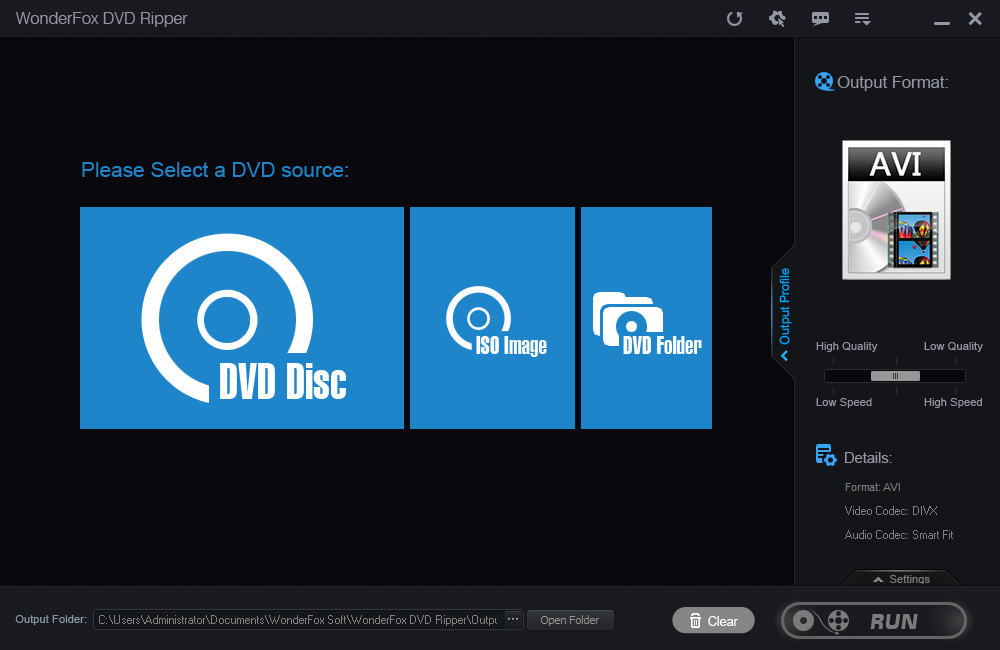
The first step is to choose the DVD source that you have. After launch DVD Ripper Pro, you can find there’re three DVD sources for you to choose from. For most people who have DVD discs, all you need to do is inserting your DVD disc into the computer, then click on “DVD Disc” on the interface. The software will read the DVD disc quickly. And for other 2 sources: ISO Image and DVD Folder. It’s also simple and quite to handle. For example: you can also convert Video_TS to MP4 if you happen to have a Video_TS folder. Just click on “DVD Folder”, then the Video_TS will be read by the software.
Choose the Main Movie and Output Format

After the DVD source is read successfully, you can see there’s a huge list of titles in the DVD. There’s is only one main movie which needs to be converted among those titles. It can be hard for you to choose the main movie manually, however, the software will select the main movie for you automatically. Then, it’s time for you to choose the output video format. 300+ video/audio formats are supported in WonderFox DVD Ripper Pro. You’ll never get disappointed no matter what format that you’re looking for. Let’s take AVI as an example. After the AVI is selected, then just click on “RUN”. The software will start to convert the DVD quickly.
Ripping DVD with WonderFox DVD Ripper Pro is easy and simple. Generally, only 3 steps need to be done: insert the DVD source – choose the output video format – get started. It can be handled by anyone within few minutes.
Edit the Output Video

WonderFox DVD Ripper Pro also allows you to edit the output video by your reference. You can edit the video with features such as: mosaic, blur, sharpen, emboss, noise and more. It also supports to you extract the audio from the video. And lots of audio formats are here for you to choose from, such as: WAV, FLAC, ALAC, MP3, AC3, AAC, WMA, MKA, OGG, M4B and more. Furthermore, you can add or remove subtitles if you’re ripping a DVD with foreign language. Just click on “Subtitles”, then you can complete the task quickly.
WonderFox is holding a Giveaway Campaign of DVD Ripper Pro for HowToTechNajia readers. Now, all of you can activate the software free with the giveaway license key below until December 5th: VC-DRPB-ACF6900783-1DFD73FF0F-79268AF585
NOTE: The giveaway version doesn’t support lifetime free update.
